Custom source
Send custom webhook events from any service into Knock and map them to actions like triggering workflows and identifying users, with optional scripting for verification and preprocessing.
The custom source enables you to receive webhook events from any service that can make HTTP callbacks and map those events to actions inside Knock. Use it when you need to connect a service that Knock does not yet offer a pre-built integration for, or when you want to send events from your own internal tools and applications. The custom source supports optional scripting so you can verify incoming payloads and preprocess them before field mapping.
When to use custom webhooks
#Custom webhooks are the right choice when:
- The service you want to connect does not have a pre-built Knock source integration.
- You are sending events from an internal tool, custom application, or microservice.
- You need full control over event type identification and field mapping.
For services with pre-built integrations (Stripe, Clerk, WorkOS, Supabase, PostHog), use those dedicated source pages instead. They provide automatic signature verification and pre-configured event types.
Getting started
#Scripting
#Each custom source can have a script that runs every time Knock receives a webhook request. Scripts enable you to verify that incoming payloads are authentic and preprocess payloads before field mapping.
A script must export a main function. Knock calls main with a context object that contains the following properties:
Verification
#The main function must return an object with a verified boolean. If verified is false or missing, Knock rejects the request with a 401 response.
If the sending service signs its payloads, store the signing secret as an account-level variable so your script can access it through vars.
The verification logic is up to you. Use whatever algorithm and header convention the sending service expects. Full per-source verification examples are available on the dedicated source integration pages (for example, Stripe).
Preprocessing
#Any additional keys you return from main alongside verified become available in field mappings under the preprocess namespace. This is useful when you need to normalize or reshape the incoming payload before mapping it to action parameters.
In this example, normalized_event becomes preprocess.normalized_event and item_idempotency_key becomes preprocess.item_idempotency_key in field mapping paths.
Configuring event types
#When Knock receives an event from a custom webhook, it needs to know how to identify the event type from the payload. You configure this by specifying a key path that tells Knock where to find the event type value in the JSON body.
For example, if your service sends payloads like:
You would set the key path to event_type so Knock can identify this as a task.completed event.
You can also specify an optional timestamp path if your payloads include a timestamp field that you want Knock to use as the event time instead of the ingestion time.
Event-action mappings
#After events start flowing into Knock, you can configure what action Knock should take when it receives each event type. From the source environment configuration page:
- Select an event type from the list of received events.
- Click "Create action mapping" to add a new mapping.
- Choose the action to execute (trigger workflow, identify user, set object, and so on). See the available actions in the overview for the full list.
- Map fields from the incoming payload to the parameters the action requires.
You can create multiple action mappings for a single event type. For example, a customer.created event could both identify a user and trigger a welcome workflow.
Field mapping
#Field mappings use dot-notation paths to extract values from the incoming JSON payload and map them to the parameters each action expects.
Given a payload like:
You could create the following mappings when triggering a workflow:
A few things to keep in mind:
- Paths are case-sensitive and follow the structure of your JSON payload.
- If your source has a preprocessing script, the values it returns are available under the
preprocess.*namespace alongside the raw payload paths. For example, a script that returnsnormalized_eventcan be mapped using the pathpreprocess.normalized_event. - You can map a single event to multiple action parameters.
- Knock validates that required fields are populated before executing the action. If a required field is missing, the action is skipped and an error appears in the action log.
Example: task management app
#Suppose you have a task management app that sends a webhook when a task is assigned. The payload looks like this:
To trigger a notification workflow when a task is assigned:
- Set the key path to
event_type. - Wait for a
task.assignedevent to arrive (or send a test event). - Create an action mapping that triggers your
task-assignedworkflow. - Map
data.assigned_toto Recipients anddata.assigned_byto Actor. - Map
data.task_idanddata.titleto workflow data fields so you can reference them in your notification templates.
Debugging
#You can see a log of all events received per source under Integrations > Sources in the Knock dashboard on the "Logs" page for your configured source. Common issues to look for:
- Missing fields. A required field path does not exist in the incoming payload. Check that the dot-notation path matches your payload structure.
- Invalid paths. The key path for event type identification does not resolve to a value. Verify the path against a sample payload.
- Type mismatches. A field value does not match the expected type (for example, passing a string where a user ID array is expected).
Event idempotency
#You can enable idempotency checks to deduplicate custom webhook events that have already been received and processed. This is useful if the service sending webhooks may deliver the same event more than once.
Because custom webhook payloads vary by service, you need to specify which field in the incoming payload contains the idempotency key. Configure the idempotency key path in the Settings tab for your source environment configuration, along with toggling idempotency checks on.
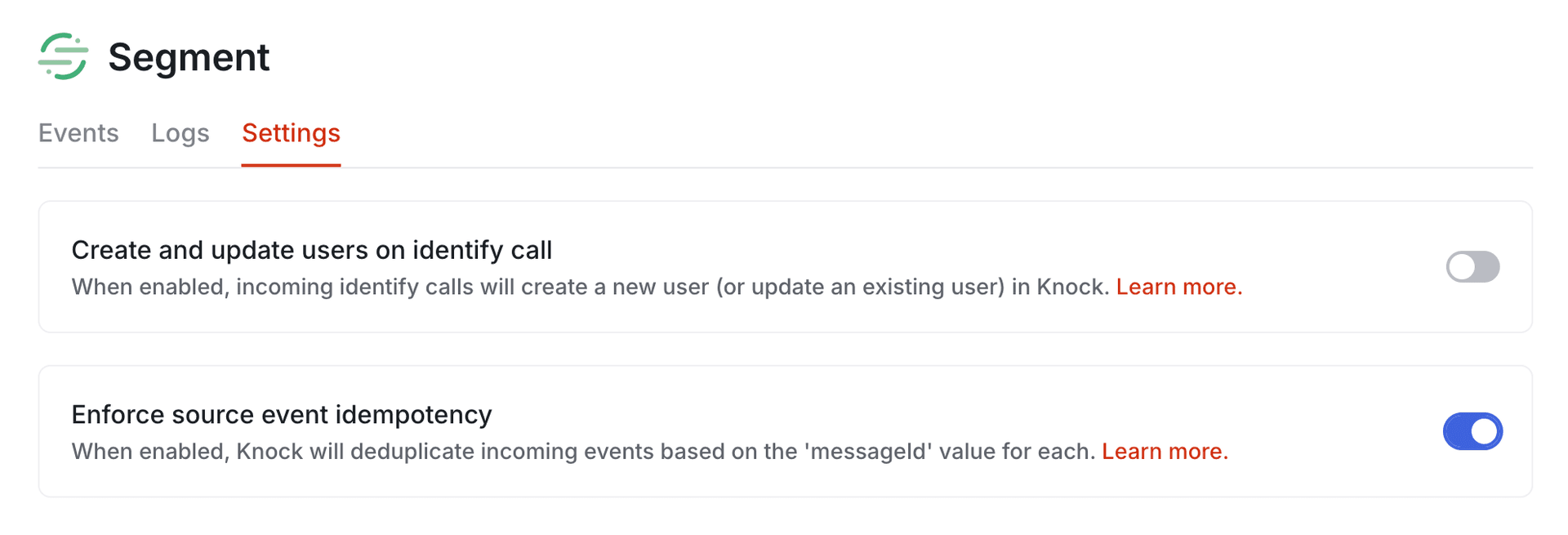
For example, if your service sends payloads with a unique event identifier:
You would set the idempotency key path to event_id so Knock can use it for deduplication.
Events without a value at the configured key path are processed normally. For details on how Knock handles idempotent events, key validation rules, and the default 24-hour idempotency window, see the source event idempotency section of the sources overview.